Preview environments using GitLab CI/CD
This guide configures GitLab CI/CD to deploy a Preview Environment for every merge request, run your automated tests against it, and destroy it when the merge request's branch is deleted.
Prerequisites
- An Okteto account
- A GitLab account
This guide uses the Movies app from the getting started guide. Fork the project to your GitLab account so you can configure CI/CD variables and open merge requests. If you're using your own application, make sure your Okteto Manifest defines the deploy and test sections.
Step 1: Create the GitLab Pipeline
A Preview Environment follows the lifecycle of a merge request. Whenever a merge request is opened or updated, the pipeline deploys a Preview Environment in Okteto with the code in the merge request, and links it from the merge request.
Create a .gitlab-ci.yml file at the root of your repository with the following content. The sample project already includes the final version of this pipeline, with the test job you add in Step 4.
# file: .gitlab-ci.yml
image: ghcr.io/okteto/okteto:stable

stages:
  - preview

deploy-preview:
  stage: preview
  script:
    - okteto preview deploy mr-$CI_MERGE_REQUEST_IID --branch $CI_COMMIT_REF_NAME --repository $CI_PROJECT_URL --wait
    - echo "PREVIEW_URL=$(okteto preview endpoints mr-$CI_MERGE_REQUEST_IID -o json | grep -o 'https://[^"/]*' | head -1)" >> preview.env
  artifacts:
    reports:
      dotenv: preview.env
  environment:
    name: preview/mr-$CI_MERGE_REQUEST_IID
    url: $PREVIEW_URL
    on_stop: destroy-preview
  rules:
    - if: $CI_PIPELINE_SOURCE == "merge_request_event"

destroy-preview:
  stage: preview
  script:
    - okteto preview destroy mr-$CI_MERGE_REQUEST_IID
  variables:
    GIT_STRATEGY: none
  environment:
    name: preview/mr-$CI_MERGE_REQUEST_IID
    action: stop
  rules:
    - if: $CI_PIPELINE_SOURCE == "merge_request_event"
      when: manual
      allow_failure: true
What each job does:
deploy-previewdeploys the Preview Environmentmr-<IID>with thedeploysection of your Okteto Manifest. The--waitflag makes the job finish when the Preview Environment is ready. The job then saves the URL of the Preview Environment, so the GitLab environment links to it from the merge request.destroy-previewdestroys the Preview Environment. GitLab runs it when the merge request's branch is deleted, for example when you merge with Delete source branch selected, and you can also run it manually from the pipeline.
The rules run both jobs only in merge request pipelines, so every merge request gets its own Preview Environment.
Step 2: Configure your CI/CD variables
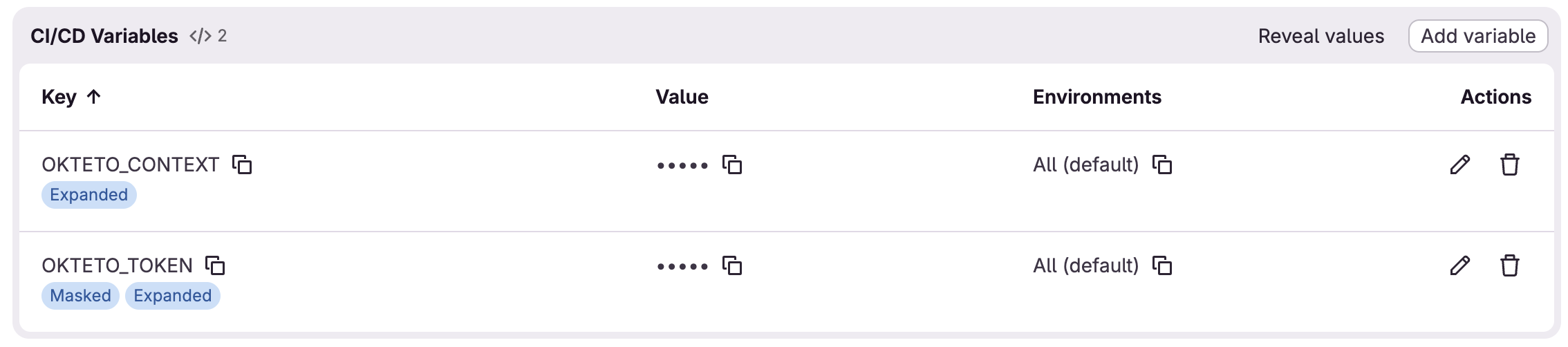
The pipeline reads your Okteto credentials from CI/CD variables, so you don't commit them to your repository. The Okteto CLI uses them automatically:
OKTETO_TOKENwith an Okteto Admin Access TokenOKTETO_CONTEXTwith the URL of your Okteto instance (e.g.https://okteto.example.com)
Add them in your project under Settings → CI/CD → Variables with the Add variable button. Select Mask variable for OKTETO_TOKEN, and clear Protect variable for both: merge request pipelines run on unprotected branches and can't read protected variables.
Step 3: Open a Merge Request and see your changes live
Make a change in a new branch of your repository and open a merge request against main. GitLab receives the event and starts a merge request pipeline. You can see the pipeline's status and logs in the Pipelines tab of the merge request.
When the deployment finishes, the merge request shows the Preview Environment. Click View app to see your changes running, and share the URL with your team to review them.

Every time the branch is updated, the pipeline runs again and redeploys the Preview Environment.
Step 4: Run your tests on every merge request
The Preview Environment is where your automated tests run on every merge request. The Okteto Manifest of the Movies app defines two Test Containers: frontend runs the frontend unit tests, and e2e runs Playwright end-to-end tests against the deployed application and exports their reports as artifacts:
test:
  frontend:
    image: node:20
    context: frontend
    caches:
      - yarn/.cache
      - node_modules
    commands:
      - yarn install
      - yarn test

  e2e:
    image: ghcr.io/okteto/playwright:chromium
    context: e2e
    caches:
      - yarn/.cache
      - node_modules
    commands:
      - bash run_tests.sh
    artifacts:
      - test-results
      - playwright-report
Add a test stage and a test job to your .gitlab-ci.yml file:
# file: .gitlab-ci.yml
stages:
  - preview
  - test

test:
  stage: test
  script:
    - okteto test --namespace mr-$CI_MERGE_REQUEST_IID
  artifacts:
    when: always
    paths:
      - e2e/playwright-report/
    expire_in: 30 days
  rules:
    - if: $CI_PIPELINE_SOURCE == "merge_request_event"
What the test job does:
okteto test --namespace mr-$CI_MERGE_REQUEST_IIDruns the Test Containers defined in thetestsection of your Okteto Manifest, in the Namespace of the Preview Environment. Pass Test Container names, for exampleokteto test e2e, to run only some of them.artifactsattaches the Playwright report exported through theartifactsfield to the pipeline.when: alwayskeeps it even when a test fails, so you can inspect the results of a failed run.
See the okteto test reference for the rest of the available flags, such as --timeout and --var.
Every merge request now runs the same Test Containers that developers run with okteto test against their Development Environment. Developers iterate on their tests locally, without pushing changes and waiting for CI, and know that the tests behave exactly the same way when they run in CI.
Step 5: Check your test results
Push the pipeline change to the branch of your merge request. The pipeline redeploys the Preview Environment and runs your tests against it.
The test job shows the output of each Test Container. When a Test Container fails, okteto test exits with a non-zero code, the test job fails, and the merge request shows the failed pipeline, so you can block merging until the tests pass.
The Playwright report is available in the artifacts of the test job, for both passing and failing runs. The Preview Environment keeps running after the tests finish, so your team can still open it to review the changes.
Step 6: Cleanup
Merging the merge request with Delete source branch selected, or deleting the branch, stops the GitLab environment and runs the destroy-preview job, which destroys the Preview Environment. You can also run the destroy-preview job manually from the pipeline, or click Stop on the environment in Operate → Environments.