Preview environments using GitLab CI/CD
Okteto integrates with GitLab review apps to automatically create a Preview Environment for your applications on every merge request.
Prerequisites
- An Okteto account
- A GitLab account
This tutorial uses the sample movies rental application. If you are using your own application, make sure your Okteto Manifest is configured.
Step 1: Configure your Okteto API token
To deploy a Preview Environment with Okteto, you need to define the following environment variables:
OKTETO_TOKEN: an Okteto access tokenOKTETO_CONTEXT: specify the URL of your Okteto instance (e.g., https://okteto.example.com)
To add the environment variables:
-
Navigate to your GitLab repository.
-
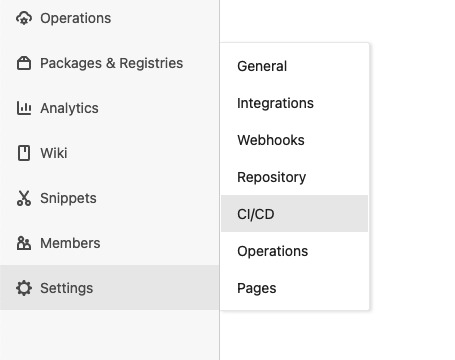
Go to the Settings menu on the left, and click on the CI/CD entry:
-
Expand the Variables section, and click on the Add Variable button under the "Project variables" section.
noteThe "Protect variable" flag is checked by default, meaning only protected branches can access the variable's value. Uncheck this flag if you want to use the variable across all branches.
-
Add
OKTETO_TOKENas the key and your access token as the value, then click the Add Variable button: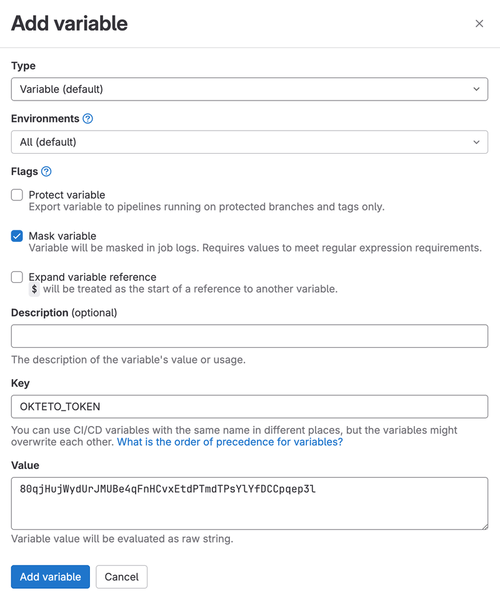
-
Repeat the same process to add the
OKTETO_CONTEXTvariable (optional):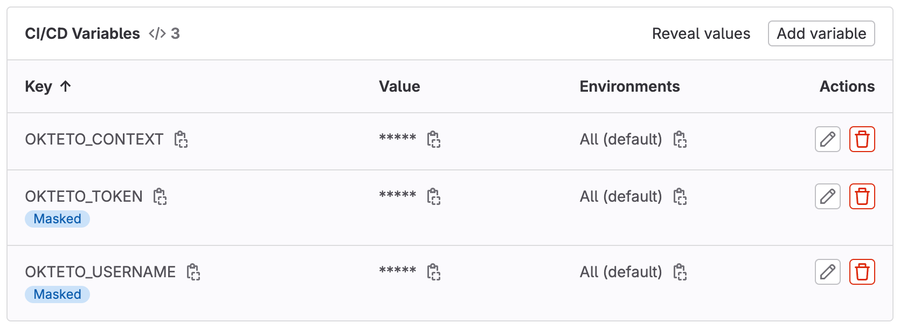
Step 2: Configure the Preview Environment on the repository
To configure GitLab to deploy your Preview Environment, create a .gitlab-ci.yml file at the root of the repository.
This file defines two jobs: review creates a Preview Environment for every branch, and stop-review destroys it when merging or deleting the branch.
The flow to create a Preview Environment looks like this:
- Create a dedicated Namespace for the Preview Environment
- Build and deploy the application using the Okteto preview defined in the repository.
- Add the URL of the Preview Environment to the Merge Request.
The flow to delete a Preview Environment looks like this:
- Destroy the application deployed with Okteto preview
The .gitlab-ci.yml looks like this:
# file: .gitlab-ci.yml
image: ghcr.io/okteto/okteto:latest

stages:
  - review

review:
  stage: review
  variables:
    APP: review-$CI_COMMIT_REF_SLUG
  script:
    - okteto preview deploy review-$CI_COMMIT_REF_SLUG --branch $CI_COMMIT_REF_NAME --repository $CI_PROJECT_URL


  environment:
    name: review/$CI_COMMIT_REF_SLUG
    url: https://movies-review-$CI_COMMIT_REF_SLUG.okteto.example.com
    on_stop: stop-review
  only:
    - branches
  except:
    - master

stop-review:
  stage: review
  when: manual
  environment:
    name: review/$CI_COMMIT_REF_SLUG
    action: stop
  script:
    - okteto preview destroy review-$CI_COMMIT_REF_SLUG
  variables:
    GIT_STRATEGY: none
  only:
    - branches
  except:
    - master
A few recommendations when creating your Preview Environment:
- Create one Preview Environment per branch or merge request to keep things isolated. The example uses
$CI_COMMIT_REF_SLUGin the name to ensure the Namespace is unique and that only one Preview Environment exists per branch. - Pass the URL of your Preview Environment using the
environment.urlkey so reviewers can go directly to the Preview Environment from GitLab. - Delete both the Preview Environment and the Namespace when the branch is deleted to avoid manual cleanup.
See the Okteto CLI reference for the full list of available commands and flags.
Step 3: Create a merge request
Once your changes are in your repository, make a small code change and create a new merge request.
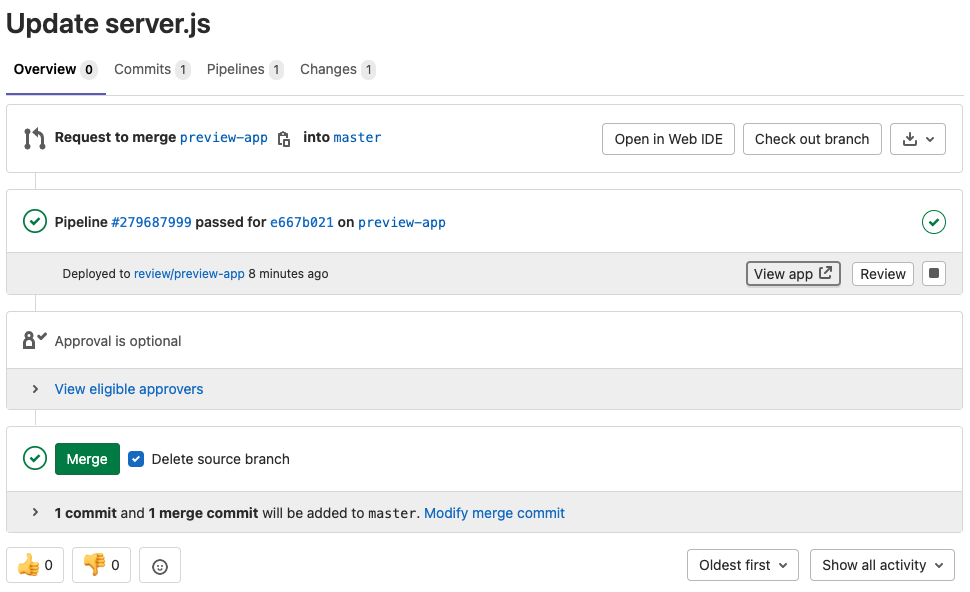
After a few seconds, the workflow updates the merge request with the URL of your Preview Environment. Click the View App button to access it and see your changes running.
Step 4: Cleanup
Merging the merge request or deleting the branch automatically triggers the stop-review job defined in the .gitlab-ci.yml file. The stop-review job destroys the Preview Environment automatically.